Trainer
One completed decisionAsk about the completed decision on screen: the visible cards, action, and available results. Save it if you want to include it in later reviews.
Panel button: Save this hand
SUPPORT & GUIDES
From your first connection to your next study plan. Find the steps, examples, and answers you need.
You’ll need desktop Chrome, access to GTO Wizard, and a ChatGPT account. The extension is free; the services you connect have their own access and usage limits. Tested on macOS.
Install GTO Study CoachAdd GTO Study Coach from the Chrome Web Store. Pin it using Chrome’s Extensions menu if you want quick access.
Sign in to GTO Wizard and open Trainer, Practiced Hands, or Sessions. Select the GTO Study Coach icon to open the side panel.
Open Settings → Connect ChatGPT in the panel. Allow access to chatgpt.com and sign in normally in the tab that opens.
Return to GTO Wizard. Before your first update or question, read the data-use explanation and choose Agree and continue.
Use Update practiced hands or Update sessions to save the results you want to review. In Trainer, the current decision is included when you ask; Save this hand keeps it for later.
Type a question or choose a suggested prompt. Press Enter to send, or Shift+Enter for a new line. Keep the ChatGPT tab available while it answers.
Choose the page that matches what you want to review. The panel’s update button changes with the page.
Ask about the completed decision on screen: the visible cards, action, and available results. Save it if you want to include it in later reviews.
Panel button: Save this hand
Set the filters in GTO Wizard, then update the completed hands. Ask about repeated mistakes and request the examples behind a conclusion.
Panel button: Update practiced hands
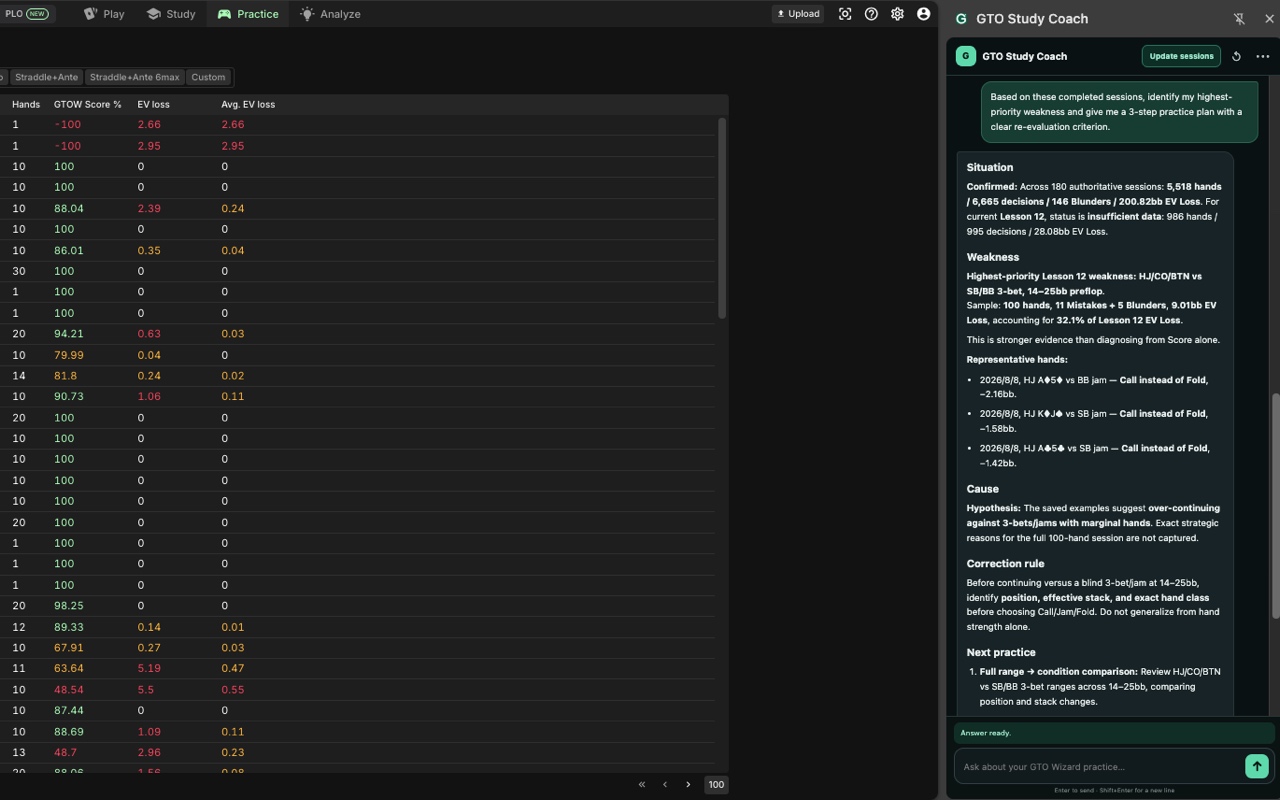
Update completed-session summaries to discuss your results and decide what to study next. A session total does not always include the detail of every hand.
Panel button: Update sessions
Use these as a starting point in the extension. Follow up on one conclusion at a time.
REVIEW A DECISION
Review this completed decision. Which facts support the explanation, and what should I check next time?
FIND A REPEATED MISTAKE
What are my recent weaknesses? Show the saved hands that support your conclusion and mention any sample-size limits.
CHOOSE ONE DRILL
Give me one focused drill based on these results. Specify the situation, what to watch for, and how to review it afterward.
MAKE A SHORT STUDY PLAN
I have 20 minutes. Suggest a review, practice, and re-evaluation plan using the completed sessions available.
CLARIFY AN ANSWER
Separate the confirmed facts from your interpretation. What cannot be determined from the captured data?
KEEP IT CONCISE
Summarize this in three bullets: the mistake, a decision rule, and what to practice next.
For a specific spot, add any missing position, effective stack, board, or action to your message. Verify exact strategies and frequencies in GTO Wizard; AI explanations can make mistakes.
Start with the symptom you can see. Keep GTO Wizard and ChatGPT open while checking the connection.
When you use the update button on a supported practice page. Trainer also reads the current completed decision when you ask a question. Questions about Practiced Hands or Sessions use the data you have already saved; update it first if you need newer results. The extension does not continuously monitor your browsing.
No. Updating study data saves it in Chrome. After connection and consent, data is sent to your ChatGPT conversation only when you submit a question from the side panel.
No. Use ChatGPT in the same Chrome profile. No API key, separate helper app, or terminal setup is required.
No. It uses the signed-in state already available in Chrome and does not read or store your passwords, cookies, or session tokens.
It uses the completed-practice data it can capture under your current filters and any data already saved in the extension. Missing pages or details are not a complete account history.
It can suggest a drill and, when possible, a Trainer link. Check the proposed settings in GTO Wizard and start the practice yourself.
Saved study data belongs to the extension in your current Chrome profile. It is not stored on a developer-operated study-data server. Your questions also exist in your own ChatGPT conversations.
Choose Clear learning data in the panel’s Settings. This removes saved practice data and the extension’s conversation history. It does not delete conversations from ChatGPT; manage those in ChatGPT.
LET’S GET YOU UNSTUCK
Tell us what happened through the support form. Include your Chrome and extension versions, the steps you took, and the message you saw. Leave out hand histories, passwords, and other sensitive information.